
Developers & engineering teams
Give your workflow a commerce data interface.
Build around catalog, inventory, order and fulfillment context through MCP, CLI or REST API. Inspect a supported read before designing the next step.
Solid Commerce · MCP / CLI / API
Connect your AI workflows to permissioned catalog, inventory, order and fulfillment data. Start with a supported read, then build around the way your team operates.
For developers, technical operations teams and integration partners working on multichannel ecommerce.
Give each API key the specific permissions its workflow needs. A new account may need channel setup before live data is available.
Example workflow
“Which products are low on stock?”
Your AI workflow
A question from the operations team
Permissioned commerce access
A supported inventory read through MCP
Account data
The inventory context available to your account
Illustrative workflow. No live account data is shown.
Developers & engineering teams
Build around catalog, inventory, order and fulfillment context through MCP, CLI or REST API. Inspect a supported read before designing the next step.
Ecommerce operations
Work with your technical team to make inventory and order data available to an AI workflow. Start with a question your team already needs to answer.
Agencies & integration partners
Set up access for each authorized merchant account. Use the same integration pattern while respecting each account's data and permissions.
Permissions for each API key
Create a separate key for each agent or application. Choose the features it can access and the actions it can take, with Read, Write, and Delete permissions where available.
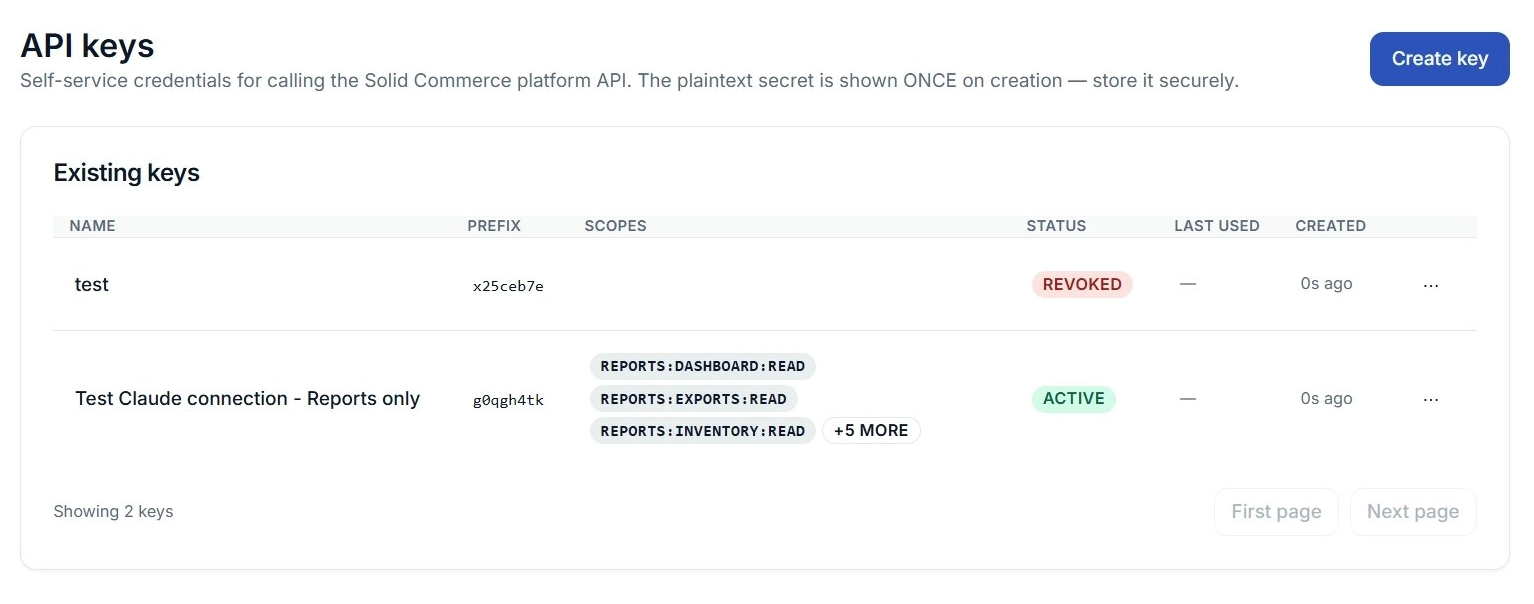
Open API Keys and choose Create key. Use a name you will recognize, such as inventory-reader. The keys list brings the name, assigned scopes, and status together for review.
Find the feature. Search scopes or expand a category such as Catalog, Inventory, or Reports.
Choose its actions. Select Read for viewing, Write for changes, and Delete only when the workflow needs deletion access. Available actions vary by feature.
Review before creating. Check the selected scopes. Use individual checkboxes to keep a key focused on its task.
Save the secret securely. The plaintext key is shown once when created. Store it securely and configure it in the client or application that will use it.
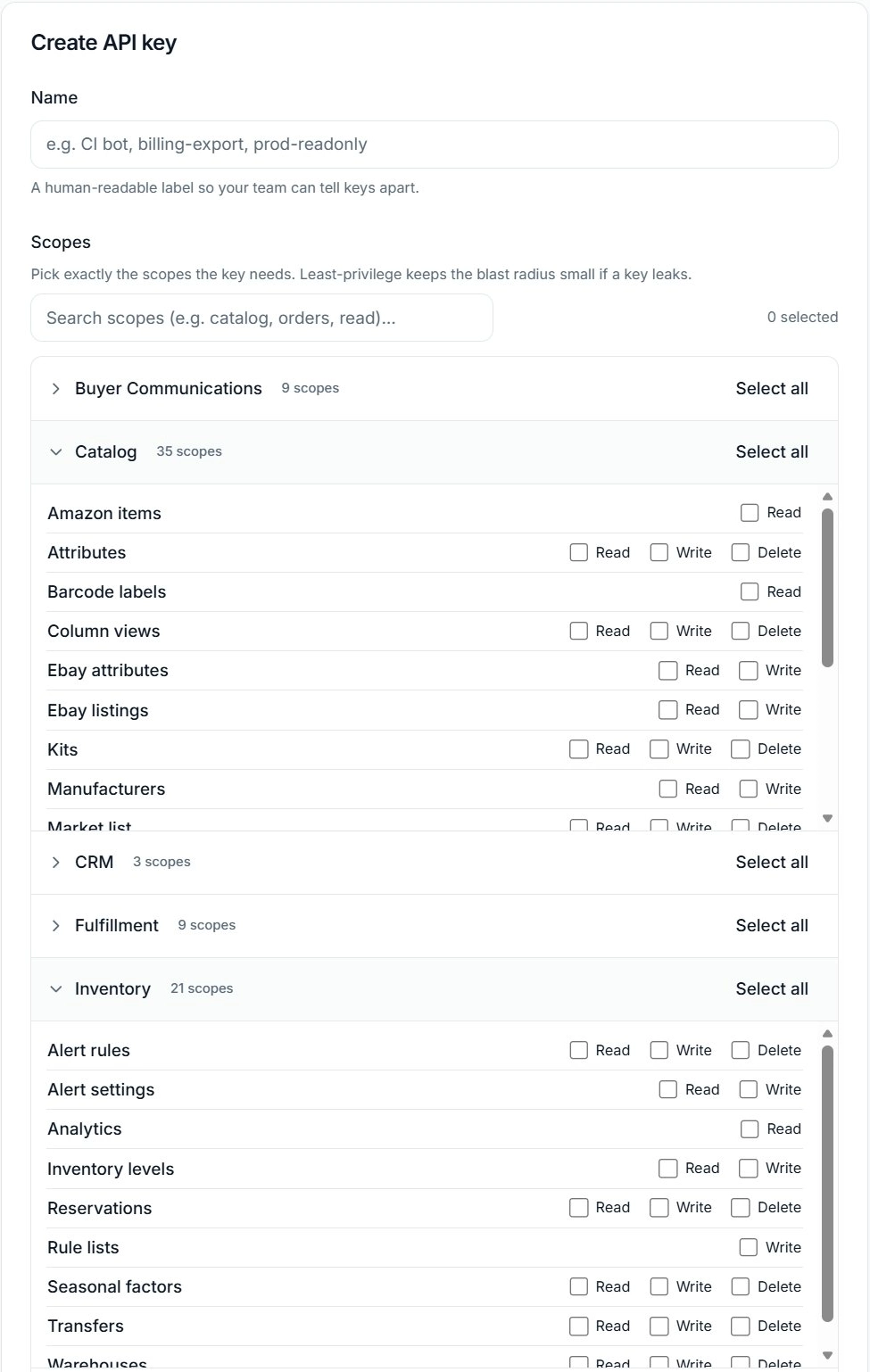
Use these examples as starting points. A permission to read inventory levels is different from the inventory report scope used by the low-stock tool.
Example key name
inventory-readerExpand Inventory, find Inventory levels, and select Read. Leave Write unchecked.
Select
Leave unselected
Inventory levels · Write
Example key name
catalog-attributes-editorExpand Catalog, find Attributes, and select Read and Write. Leave Delete unchecked.
Select
Leave unselected
Attributes · Delete
Example key name
low-stock-reportsIn Reports, enable the inventory read scope for the low-stock tool shown on this page. Add other report scopes only as needed.
Select
Leave unselected
Unneeded scopes outside this report workflow
These are configuration examples. Actual access also depends on your account and connected systems. Keep other scopes unselected unless your workflow requires them.
An actual supported read tool
A low-stock investigation is a concrete first workflow. The inventory tool reads data available to your account so your AI workflow can use the result to investigate and prepare the next step.
This read requires inventory report access. An empty result may mean no matching records or that the required data is not available yet. Check your connection and account setup before interpreting it.
Ask about your integrationMCP tool request
{
  "name": "reports_inventory_low_stock_list",
  "arguments": {
    "query": {
      "page_number": 1,
      "page_size": 10
    }
  }
}
Scope: reports:inventory:read
Request example only. Configure your authenticated client and account permissions before calling the tool. This example does not modify inventory.
Choose how you want to connect: MCP, CLI or API.
Configure account access and connect the commerce systems your workflow needs.
Name a key for this workflow and select its permissions. The low-stock example uses reports:inventory:read.
Inspect the result, understand what is available and continue building.
Use MCP with a supported AI client, CLI for local workflows, or REST API for your application. Client availability depends on provider, plan and workspace configuration.
Yes. Name each key for its agent or application, then select scopes by feature and action. For example, give one key Read access to Inventory levels, and another Read and Write access to Catalog Attributes while leaving Delete unselected. The low-stock report tool uses the separate reports:inventory:read scope.
This is access to business ecommerce data for merchant teams and their builders. It is designed for working with your operation's data.
Live data requires the relevant commerce systems to be connected and available to your account. Your permissions and connection status determine what a workflow can access.
Supported clients and workspaces can connect through MCP, subject to their configuration and your account permissions. Check the specific client, plan and workspace requirements when setting up access.
Builders can use MCP, CLI or API directly. Operations teams can work with a developer or contact us about their integration.
The inventory example is a read operation. Other tools may perform actions; review the tool and your account permissions before using them.
Results reflect the data available in your connected Solid Commerce account. Availability and freshness depend on the source connection and synchronization state.
For plan and access questions, contact our team before committing.
Create your developer account and choose the first workflow you want to build.
Solid Commerce is not affiliated with or endorsed by OpenAI or Anthropic. ChatGPT and Claude are trademarks of their respective owners.